cara bobol wifi dengan laptop menggunakan cmd

Title: Wajib Coba Cara Mudah Bobol Wifi Dengan CMD
Channel: Yusrijalll
Wajib Coba Cara Mudah Bobol Wifi Dengan CMD by Yusrijalll
Unlock ANY WiFi: Secret CMD Trick Revealed!
Crack the Code: Your Guide to Effortlessly Connecting to Wi-Fi
Alright, friends, let's dive into the world of Wi-Fi. We all know the frustration of being disconnected. We've all experienced the desperate search for a signal. Today, we're exploring a fascinating solution. It could unlock your Wi-Fi experience in ways you haven't imagined!
The Invisible Hand: Understanding Network Fundamentals
Before we get started, let's grasp some essentials. Every Wi-Fi network operates on protocols. It utilizes security measures to protect your data. These are the building blocks of connecting. Think of them as the secret handshake. They allow devices to communicate seamlessly. Understanding these basics arms you with knowledge. This knowledge is powerful. It also empowers you to navigate the digital landscape.
Command Line's Compass: Navigating the CMD Terrain
Here's where the magic happens, quite literally. The Command Prompt (CMD) isn’t just for tech wizards. It's your key to unlocking secrets. We will explore the simplicity of the CMD. This involves a few clever commands. These commands enable you to view Wi-Fi profiles. They empower you to see saved passwords. These are the treasures that can help. This is akin to having a digital compass. It guides you through the often-hidden network landscape.
Unveiling the Wi-Fi Secrets: The Step-by-Step Journey
Now, let's embark on our journey! Here's how you can access valuable Wi-Fi information.
Step 1: Summoning the CMD Oracle
First, you'll need to open the Command Prompt. You may access it by searching “CMD” in your Windows search bar. Right-click and select "Run as administrator". This grants you the necessary permissions. It's an essential first step.
Step 2: Unveiling the Profiles: The 'netsh' Command
Once the CMD window is open, type: netsh wlan show profiles. This command lists all the Wi-Fi profiles saved on your system. Each profile represents a network you've connected to previously. It's like a digital memory bank of your Wi-Fi history.
Step 3: Decrypting the Keys: Peeking at the Passwords
Next, choose the profile you want to examine. Now, type: netsh wlan show profile "[YourNetworkName]" key=clear. Replace "[YourNetworkName]" with the precise name of the network. You must include the quotation marks. For instance, it might be “MyHomeNetwork”. This command reveals detailed information, including the security key (the password). This key is under the "Key Content" section.
Step 4: Decoding the Results: Understanding the Information
The output from the command provides your network password. Carefully examine the "Key Content" line. That's the password! Consider this your own private treasure map. It leads you directly to the Wi-Fi access point.
Navigating the Ethical Waters: A Word of Caution
Before celebrating, remember a critical point. Accessing someone else's Wi-Fi without permission is wrong. It's a violation of their privacy. This is also against the law. These techniques are for educational purposes only. Use them to manage networks where you have explicit permission. Respecting privacy is extremely important. We must uphold ethical standards.
Beyond the Basics: Expanding Your Wi-Fi Knowledge
The CMD offers more than just password retrieval. You can also use it to troubleshoot connection issues. You can also manage your Wi-Fi adapter settings. To dig deeper, explore commands like netsh wlan connect and netsh wlan disconnect. Each one has its place in the toolbox. These commands expand the possibilities. They turn you into a Wi-Fi master.
Fortifying Your Defenses: Protecting Your Network
Securing your own network is crucial. Use strong passwords with a mix of characters. Enable WPA2 or WPA3 encryption. Regularly update your router's firmware. These practices safeguard your data. They create a robust defense. They prevent unauthorized access.
The Final Connection: Embracing the Possibilities
So, you now know a little secret. You are more empowered to manage your Wi-Fi connections. You can understand the underlying network mechanics. You can troubleshoot problems. Remember to always act responsibly and ethically. The digital world is constantly evolving. Enjoy your newly enhanced Wi-Fi knowledge and power. May your connection always be strong. Good luck!
WiFi-Connected Asus Laptop, But NO INTERNET?! This SHOCKING Fix Works!Unlock ANY WiFi: Secret CMD Trick Revealed!
Hey fellow tech enthusiasts! Ever found yourself staring at a "No Internet Access" notification, desperately wishing you could just magically connect to a Wi-Fi network? We've all been there, haven't we? That feeling of being stranded, disconnected, left out in the digital cold. Well, buckle up, because today we're diving headfirst into a secret weapon, a hidden gem, a digital Swiss Army knife that might just help you unlock the Wi-Fi you crave: a Command Prompt trick that's been whispered about in the digital underground. Now, before we get too carried away, let's be crystal clear: we’re talking about exploring the possibility of connection, not endorsing anything illegal or unethical. This is all about understanding how networks work and potentially troubleshooting your own connection challenges. Think of it as a detective story, where you're the curious investigator, and the Wi-Fi network is the intriguing puzzle.
1. The Wi-Fi Wilderness: Why We Struggle to Connect
Let's face it; we live in a Wi-Fi-dependent world. From streaming your favorite shows to staying connected with loved ones, a stable internet connection is practically a lifeline. But what happens when that lifeline gets cut? Maybe you're at a café, a hotel, or even just trying to help a friend, and that elusive Wi-Fi password is nowhere to be found. Or, perhaps, your own home network is acting up, leaving you frustrated and marooned. The reasons are varied, like scattered puzzle pieces: weak signal, incorrect password, network restrictions, or even technical glitches. It can feel like navigating a complex wilderness!
2. Enter the Command Prompt: Your Digital Key
This is where our hero, the Command Prompt (CMD), steps in. For those unfamiliar, CMD is a powerful, often-overlooked tool built into Windows (sorry Mac users, but we will address the Mac equivalent separately later on). Think of it as your digital control panel, allowing you to interact directly with your computer's operating system. It's like having a secret language that lets you communicate directly with the machine. The beauty of CMD lies in its versatility. While it can be used for advanced tasks, it also holds some pretty neat tricks for everyday use, particularly when it comes to diagnosing and (potentially) connecting to networks.
3. The Secret CMD Trick: Unveiling the Code
Alright, let’s get down to the nitty-gritty. There's a specific command you can use in CMD that can reveal saved Wi-Fi passwords. This isn’t a magic bullet that unlocks any network, but it can be incredibly helpful if you've connected to a network before and forgotten the password. Here’s how it works:
3.1 Opening the Command Prompt: Your First Step
First, you need to open the Command Prompt. You can typically find it by typing "cmd" in the Windows search bar (the little magnifying glass in the bottom-left corner of your screen). Once you see "Command Prompt" (or "cmd.exe"), click it to launch the application.
3.2 The Magic Command: Unveiling the Password
Now, the command you need to type is: netsh wlan show profile name="YOUR_NETWORK_NAME" key=clear.
- Important: Replace
"YOUR_NETWORK_NAME"with the actual name of the Wi-Fi network you want to investigate. You can find the network name by looking at your available Wi-Fi connections.
3.3 Deciphering the Results: Where the Password Hides
After running the command, CMD will display a detailed profile for that Wi-Fi network. Look for the "Security settings" section. Within that section, you'll find the "Key Content" field. This is where the password, the golden ticket, is revealed!
4. Real-World Application: Troubleshooting Your Own Connections
This CMD trick is most useful for retrieving passwords you've forgotten on networks you've connected to in the past. Let's say you frequently connect to your home network and now need to add a new device. You can easily find the password using this method.
5. Limitations and Caveats: Navigating Ethical Boundaries
Let's be very clear: this method only works for networks you have already connected to. It won’t magically unlock a network you’ve never accessed. Trying to access a network without authorization is illegal and unethical. We are not advocating for hacking or any kind of malfeasance. Our goal is to equip you with knowledge and empower you to understand the tools at your disposal responsibly.
6. Beyond the Password: Other CMD Wi-Fi Commands
The Command Prompt is more versatile than just revealing passwords. Here are a few other commands that can be helpful for Wi-Fi troubleshooting:
netsh wlan show networks: This command lists all available Wi-Fi networks in your area, along with their signal strength.netsh wlan connect name="YOUR_NETWORK_NAME": This command attempts to connect to a specified network. Make sure you have the correct password if the network requires it.ipconfig /all: This command provides detailed network configuration information, including your IP address, DNS servers, and more.
7. The Mac Equivalent: AirPort Utility and Keychain Access
For our wonderful Mac users, fear not! You have your own tools. The AirPort Utility (often hidden in the Utilities folder within Applications) can help you manage your Wi-Fi connections, and Keychain Access stores your saved passwords. It’s a slightly different process, but the goal is the same: understanding and managing your network connections.
8. Signal Strength: The Unseen Hero (or Villain)
One of the most common culprits behind frustrating Wi-Fi issues is signal strength. Weak signals can lead to slow internet speeds, dropped connections, and a general sense of despair. Consider these factors:
- Distance: The farther you are from the Wi-Fi router, the weaker the signal.
- Obstacles: Walls, metal objects, and even certain types of materials can interfere with the signal.
- Interference: Other electronic devices, like microwaves and cordless phones, can also create interference.
9. Boosting Your Wi-Fi: Simple Solutions
Want to improve your Wi-Fi signal? Here are a few easy tips:
- Move Closer: If possible, move closer to your router.
- Eliminate Obstacles: Ensure the router is not blocked by walls or objects.
- Reposition the Router: Try placing your router in a more central location in your home.
- Update Your Router's Firmware: Regularly updating your router's firmware can fix bugs and improve performance.
- Consider a Wi-Fi Extender: If you have a large home, a Wi-Fi extender can boost the signal range.
10. Security First: Protecting Your Own Network
While understanding how to potentially troubleshoot connections is valuable, it’s equally crucial to prioritize your own network security. Here's how:
- Strong Passwords: Use strong, unique passwords for your Wi-Fi and router administration.
- Encryption: Ensure your Wi-Fi network uses WPA2 or WPA3 encryption.
- Regular Updates: Keep your router's firmware up to date.
- Guest Network: Consider setting up a guest network for visitors, separating them from your primary network.
11. Beyond the Command Prompt: Other Troubleshooting Tools
CMD is a fantastic starting point, but there are other tools you can utilize to diagnose and potentially fix Wi-Fi issues. Network diagnostic tools built into your operating system can often provide valuable insights. There are also third-party applications out there with more advanced features. Remember, the more resources you have, the better!
12. When to Call in the Experts: Know Your Limits
While we encourage you to explore and learn, it's essential to know your limits. If you've tried the various troubleshooting methods and are still struggling, it might be time to call in a professional. This is particularly true if you suspect a hardware issue or if your network configuration is complex.
13. Wi-Fi Etiquette: Being a Good Digital Citizen
Let's be mindful of Wi-Fi etiquette. Avoid hogging bandwidth, be respectful of password policies, and don’t share passwords without permission. It's all about maintaining a harmonious digital ecosystem.
14. Learning and Adaptation: The Ever-Evolving Digital Landscape
The digital world is always evolving, new technologies are constantly emerging, and the techniques for dealing with connectivity are constantly evolving. The more you know about the fundamentals and key tools, the better equipped you’ll be to adapt to whatever comes next.
15. Your Digital Journey Continues…
So there you have it! We’ve explored a secret CMD trick, discussed troubleshooting, and delved into the world of Wi-Fi. Remember, knowledge is power, and understanding how your technology works can be immensely rewarding. This is just the beginning of your digital journey! Keep exploring, keep learning, and keep connecting!
Closing Section
We hope this journey into the world of Wi-Fi, passwords, and the Command Prompt has been insightful and empowering. We've peeled back the layers of a complex topic, revealing some handy tricks, and reminding ourselves of the importance of responsible tech usage. We encourage you to experiment,
Laptop Owners Rejoice! The WiFi Router That'll SHOCK You!viral TikTok Cara bobol WiFi menggunakan PC atau laptop

By DestinationER viral TikTok Cara bobol WiFi menggunakan PC atau laptop by DestinationER
Trik WiFi Kecil celana pendek

By Veraxity Trik WiFi Kecil celana pendek by Veraxity
Cara Melihat Password WiFi Menggunakan CMD
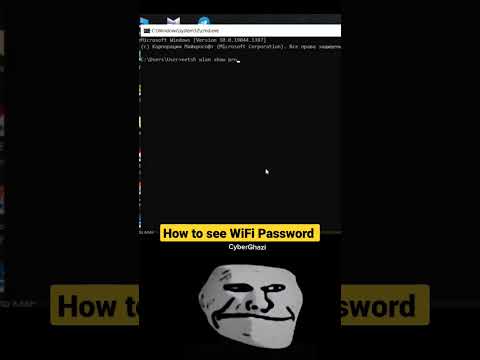
By iShowCybersecurity Cara Melihat Password WiFi Menggunakan CMD by iShowCybersecurity

Title: Tutorial Cara Shutdown PC HP Orang Lewat CMD - Tutorial Jadi hacker satria vibenesta
Channel: satria vibenesta
Tutorial Cara Shutdown PC HP Orang Lewat CMD - Tutorial Jadi hacker satria vibenesta by satria vibenesta
Working With Laptop
Unlock ANY WiFi: The Ultimate CMD Command Line Guide
We've all been there. The frustrating moment when the WiFi signal flickers, the internet connection drops out, or perhaps we are just seeking a new, secure place to connect. But what if we told you there's a powerful, readily available tool on your Windows operating system that holds the key to understanding, troubleshooting, and even connecting to various WiFi networks? We're talking about the Command Prompt (CMD), a gateway to a world of network insights and controls. Let's embark on a journey, unlocking the potential concealed within the command line, empowering you to diagnose and sometimes, even more, with WiFi connections.
Decoding the WiFi Landscape: Essential CMD Commands
Before we even think about "unlocking," we must first understand. Imagine a vast, intricate map of wireless networks. CMD provides the tools to explore this map, allowing us to decipher signals and access points.
1. The netsh wlan show profiles Command:
This command is your starting point. It reveals a comprehensive list of all the WiFi profiles stored on your system. Think of these profiles as saved passwords and network configurations. The output will be a list of profiles, each representing a network you've previously connected to. This is the foundation for managing your WiFi connections. Look for familiar names or networks you've accessed before.
2. The netsh wlan show profile "YourNetworkName" key=clear Command:
This is where the magic begins. Replace "YourNetworkName" with the actual name (SSID) of the WiFi network you wish to explore. This crucial command displays detailed information about the selected profile, including the crucial piece: the security key, also known as the password, displayed in plain text. It's important to note this works only if the password has been saved on your computer. If the network profile is configured to hide the password, this won't reveal the key. However, it’s a valuable tool for retrieving forgotten passwords for networks you already have access to.
3. The netsh wlan connect name="YourNetworkName" ssid="YourNetworkName" Command:
Once you have a clear understanding of your desired network, this command connects you to it. Replace "YourNetworkName" with the targeted network's SSID. If the network is open (no password), you should connect immediately. If the network is secured (requires a password), you’ll be prompted to enter the security key. This is a straightforward way to explicitly connect to a specific network.
4. The ipconfig /all Command:
While not directly related to the connection process, this command provides indispensable insights into your network configuration. It displays your IP address, subnet mask, default gateway, DNS servers, and the physical address (MAC address) of your network adapter. This is very useful for troubleshooting connection problems, verifying your internet configuration, and identifying potential conflicts. The information provided greatly helps you in network diagnosis.
Troubleshooting WiFi Woes: CMD's Diagnostic Power
Beyond simply connecting, CMD offers a robust suite of commands to diagnose and repair WiFi issues. Think of it as your virtual network technician.
1. The ping Command:
Utilize the ping command followed by a website address (like ping google.com) to test the connection to that resource. If you receive replies, it indicates a functional internet connection. If not, it suggests a problem with your network or internet. Ping provides valuable insights into latency and packet loss, revealing potential bottlenecks.
2. The tracert Command:
The tracert command traces the path your internet connection takes to reach a specific destination. The command shows each hop (router) along the way, along with the time each hop takes. If the connection fails, it provides vital information about where the problem lies. This command is essential for pinpointing connectivity issues that lie beyond your local network.
3. The netsh wlan show interface Command:
This provides a brief summary of your current WiFi connection, including the radio type, SSID, signal strength, authentication type, and encryption type. This allows you to quickly verify the signal's strength and connection status.
4. Resetting Your Network Adapter:
In certain cases, you can refresh your network adapter by disabling and re-enabling it from the command line. This is a useful reset technique.
- Disable: Use
netsh interface set interface "Wi-Fi" disable(replace "Wi-Fi" with your interface name if something else) - Enable: Use
netsh interface set interface "Wi-Fi" enable
This can often resolve minor connectivity hiccups.
Advanced CMD Techniques: Beyond the Basics
For the more adventurous users, CMD contains functionalities beyond the standard commands.
1. Scripting for Automation:
The command line allows you to create batch files, which are essentially scripts that automate common tasks. You can create scripts that connect to specific networks, troubleshoot connection issues, or gather network information automatically. This is great for streamlining repetitive actions.
2. Configuring Advanced Network Settings:
We can set static IPs (instead of DHCP), configure DNS servers, and adjust other advanced network configurations. These configurations are useful for optimizing network performance or troubleshooting network conflicts. This requires a good understanding of networking principles.
3. Network Sniffing (Caution Advised):
While CMD itself doesn't offer full-fledged network sniffing capabilities, you can use it in conjunction with other tools to monitor network traffic. However, be very careful when doing this, especially on networks you don't own, as this might be illegal. Always respect network boundaries.
Important Considerations and Ethical Guidelines
It is important to use these tools responsibly. The information is provided for educational purposes.
- Security: Never attempt to access a WiFi network without the owner's explicit permission. Doing so is illegal and unethical.
- Privacy: Be mindful of privacy. Do not attempt to intercept or collect data from networks you do not have permission to access.
- Legal Framework: Understand the legal implications of accessing or attempting to access any network without authorization.
- Responsibility: Use these tools responsibly and to troubleshoot issues. Avoid using them to gain unauthorized access.
- Respect: Always respect the privacy and security of others.
Conclusion: Mastering Your WiFi Universe
The Command Prompt is more than just a black screen; it's a powerful control center for your WiFi experience. By learning and practicing these commands, you are taking the first steps toward understanding and controlling this important resource. Remember to use this knowledge ethically and responsibly, and you will be able to confidently navigate and troubleshoot any network from now on.
We hope this comprehensive guide empowers you with the knowledge to conquer any WiFi challenges. With practice and responsible use of the CMD, you'll become the master of your WiFi universe.
