share wifi password from laptop to android

Title: How to connect to any wifi without the password.wifi tech android
Channel: Prince Marko
How to connect to any wifi without the password.wifi tech android by Prince Marko
share wifi password from laptop to android, how to share wifi password from android to windows laptop, share wifi password pc to android, can you share wifi password from phone to laptop
Steal Your Laptop's WiFi Password on Android: The Secret Trick!
Unveiling the Android WiFi Password Secret: A Digital Expedition
Ever wondered how to smoothly navigate the digital world? You’re likely looking for a secure WiFi connection. Accessing a laptop's WiFi password from your Android device, however, is a task shrouded in internet myths. So, prepare yourself! Let's begin our exploration. We’ll uncover a fascinating method.
The Digital Quest: Why This Matters
Think about the convenience of readily available WiFi. Moreover, consider the potential benefits. Think of all the data you could conserve. You can avoid those pesky data overage charges. Additionally, you get to enjoy seamless connectivity. This quest is not about illegal activities. It's about understanding network ecosystems. It’s also about becoming a smarter digital citizen. Consequently, the knowledge here could be useful.
Navigating the Labyrinth: Prerequisites for Success
Firstly, you'll need physical access. You require access to the target laptop, for a brief amount of time. You’ll also need your Android device. Furthermore, ensure both devices are on the same network. And now you'll be ready!
Unlocking the Secrets: The Android Revelation
The process involves a few crucial steps. This doesn't require complex hacking. It is mostly about utilizing existing tools. We will now explore the methods.
Step 1: The Windows Command Center. Access the command prompt on the laptop. This is essentially a tool. It allows you to interact with the operating system. You can usually search for "cmd" in the Windows search bar. Then, right-click and "Run as administrator".
Step 2: The Magic Command. Type the following command into the command prompt:
netsh wlan show profile name="WiFi Name" key=clear. Make sure to replace "WiFi Name" with the actual network name. This will reveal the WiFi password!Step 3: Deciphering the Cipher. The command's output reveals various network details. The "key content" line is where you will find the password. Note down the password. And now you have access!
Step 4: Android's Embrace. On your Android, navigate to the WiFi settings. Select the network. Tap the "connect to network" option. Enter the obtained password. Voila! You’re connected.
Security Protocols: Protecting Your Digital Fortress
Now you've learned this technique. It is important to prioritize digital security. Regularly update operating systems and software. Use strong, unique passwords. Additionally, enable two-factor authentication. Furthermore, be mindful of public WiFi networks. Always use a VPN when on public networks. Finally, stay informed about cybersecurity threats.
Beyond the Horizon: Exploring Further
This is more than just accessing a password. You’re learning about networking. You're learning about how data moves. Further investigation may be interesting. Research different networking commands. Learn about network security protocols. Similarly, explore other Android WiFi tools. Expand your digital horizons.
A Word of Caution: Ethical Considerations
Remember, it's vital that you respect user privacy. Only use this method on networks you have permission to access. Unauthorized access is a serious offense. Use your newfound knowledge responsibly. Always adhere to ethical principles. Avoid actions that could harm others.
Recapping the Journey: A Summary of the Voyage
In conclusion, you’ve successfully navigated the path. You've uncovered a method to reveal a laptop's WiFi password on Android. You've also learned about network security. This requires ethical and responsible use. So, use this knowledge wisely. Embrace it and improve your digital competence.
Boost Your Laptop's Wi-Fi Signal: Insane Trick Inside!Steal Your Laptop's WiFi Password on Android: The Secret Trick!
Alright, folks, gather 'round! Let's talk about something we've all secretly wondered about at one point or another: how to peek at that elusive Wi-Fi password on your laptop using your trusty Android phone. Now, before you think I'm about to lead you down a path of digital piracy (shame on you!), let me clarify. We're exploring a method for ethical purposes – perhaps you forgot your password (it happens to the best of us!), or maybe you're just curious about how things work behind the digital curtain. And remember, always respect network owner's privacy. This isn't a guide for malicious intent. Think of it more like a magic trick reveal. Ready? Let's dive in!
1. The Curiosity Conundrum: Why Bother Finding Your Wi-Fi Password?
Let's be honest, a lot of us have been there. That feeling when you need to connect a new device, a friend asks for the password, or you're just plain curious about what's hidden behind the encrypted veil of your Wi-Fi network. Forgetfulness is a real thing! Remembering those complex strings of characters is easier said than done, isn't it? It's like trying to recall the exact recipe for your grandma's secret apple pie – it's locked away somewhere! So, the need to unearth the password can arise from various legitimate needs.
2. Understanding the Basics: Wi-Fi Security and Your Laptop's Role
Before we get into the good stuff, let's briefly touch on the fundamentals. Your laptop, much like a wise old wizard, holds the key (the password!) to your Wi-Fi kingdom. When you initially connect to a Wi-Fi network, your laptop stores this crucial information. Think of it as a secret handshake for gaining entry. We're going to use a little digital detective work to "decode" this handshake.
3. Unveiling the Secret Weapon: The QR Code Method (Almost a Secret!)
Here's the trick we're talking about. Most laptops, these days, running Windows 10 or 11, possess the ability to generate a QR code that contains your Wi-Fi password. This is literally like the keys to the castle, encoded in a quick scan! The beauty? You can scan this QR code with your Android device and be instantly connected, all without typing a single character. Simple, right? But how do we create this magical QR code?
4. Step-by-Step Guide: Generating the Wi-Fi QR Code on Your Laptop
Alright, let's roll up our sleeves and get down to business. This process is relatively straightforward!
Step 1: Access Your Network Settings: On your Windows laptop, click the Wi-Fi icon in the system tray (usually in the bottom right corner of your screen).
Step 2: Navigate to Network and Internet Settings: Right-click on the Wi-Fi icon and select "Open Network & Internet settings."
Step 3: Locate "Change adapter options". In the resulting window, your Wi-Fi connection will be listed.
Step 4: Right-click Your Wi-Fi Network Connection: It's time to right-click your active Wi-Fi connection (the one you're currently using). Choose "Status."
Step 5: Wireless Properties: In the Wi-Fi status window, select "Wireless Properties."
Step 6: Show Characters: Here, you should see your network password. Click the checkbox to bring your password to view.
Step 7: Magic! There isn't exactly a "generate QR code" button, but this method lets you clearly see your password.
Important Note: Some older operating systems might not have this exact feature. The exact process might vary slightly depending on your Windows version. However, the underlying principle remains the same – finding your Wi-Fi connection and then viewing the password.
5. Scanning and Connecting: Your Android's Moment to Shine
Now that we've got our Wi-Fi password (or, at least, the information we need), it's time for your Android phone to take center stage.
- Step 1: The Scanner: You need a QR code scanner. Most modern Android phones have this built into their camera app. Just point your camera at the Wi-Fi QR code, and it should recognize it! You can also grab a free QR Code scanner from the Google Play Store.
- Step 2: Scan Away!: Open your QR code scanner and point it at the QR code displayed on your laptop screen.
- Step 3: Connect to Wi-Fi: The scanner will decode the QR code, extract your Wi-Fi network name and password. It will then prompt you to connect to the network. Tap "Connect," and voila! You're seamlessly connected.
6. Troubleshooting Troubles: What if it Doesn't Work?
Sometimes, the magic doesn't work perfectly. Here are a few common troubleshooting tips:
- Scanner Issues: Make sure your camera isn't blurry and that it focuses on the QR code properly. Your scanner app may need permission to access your camera.
- Software Glitches: Restart both your laptop and your Android phone. This often solves minor issues.
- Compatibility Concerns: Ensure your laptop and Android phone have up-to-date software.
- Network Issues: Double-check that your laptop is actually connected to the network you're trying to share.
- Hidden Networks: If your network is hidden, you might have to manually enter the network name (SSID) along with the password.
7. Safety First: Protecting Your Network
This entire process is just about being resourceful and getting your own password from your own device. Keep in mind that sharing your password with untrusted individuals can open your network to risks. We're talking about potential security breaches and unauthorized access to your devices. Always safeguard your password, and remember that using your Wi-Fi for ethical reasons is paramount.
8. Beyond the Basics: Advanced Techniques (For the Technically Inclined only!)
For those who love to tinker, and know a network or 2, there are other ways to potentially uncover a password. These are much more involved, and require a deeper understanding of networking principles. These include:
- Using Network Monitoring Tools.
- Analyzing Configuration Files.
- Employing Specialized Password Recovery Software. (Note: Proceed with caution; misuse can be illegal!)
These methods are generally beyond the scope of this casual guide and require significant technical expertise.
9. Password Managers: A Saviour for Forgotten Passwords
If you're like me, you probably have a mountain of passwords you need to remember. It's time to call in the cavalry! Password managers are your digital saviors!
- Centralized Storage: Password managers securely store all your passwords in one place.
- Auto-Fill: Save time by automating the sign-in process on websites and apps.
- Security: Benefit from robust encryption and the ability to generate strong, unique passwords.
Popular options include: LastPass, 1Password, and Bitwarden.
10. The Ethical Considerations: A Gentle Reminder
I must stress the importance of upholding responsible digital citizenship. Use this tutorial to find your own forgotten passwords or connect devices you own to your network. Do not use these techniques for unauthorized access. Respecting network security is paramount.
11. Alternatives to QR Codes: The Manual Method
If for some reason, the QR code method doesn't work, you always have the option of manually entering the Wi-Fi password on your Android. This is the old-school approach, but it's still effective! You got this!
12. Different Android Versions: A Quick Guide
- Android 12 and Later: QR code scanning is often built directly into the camera app.
- Android 11 and Earlier: Download a dedicated QR code scanner app from the Google Play Store.
The basic process is the same across most Android versions.
13. Keeping Your Data Secure: A Final Plea
- Use Strong Passwords: Generate unique, complex passwords for your Wi-Fi networks.
- Enable Encryption: Ensure your Wi-Fi router uses WPA3 or WPA2 encryption.
- Update Your Firmware: Regularly update your router's firmware to patch security vulnerabilities.
14. Beyond WiFi: Expanding Your Tech Knowledge.
This exploration of Wi-Fi passwords has been a great learning experience. Try new things and hone your skills.
15. Conclusion: The Secret is Out!
So, there you have it! You've learned a nifty trick for retrieving your Wi-Fi password from your laptop using your Android phone. We've covered the basics, provided troubleshooting tips, and emphasized the importance of ethical conduct. Now you know the secret behind accessing your Wi-Fi password! Remember, use this newfound knowledge responsibly, and keep on exploring the fascinating world of technology!
Final Thoughts
Alright, folks, there you have it! The secret's out. You can now, with the right setup, easily "steal" your laptop's Wi-Fi password using your Android phone (ethically, of course!). We've covered the basics, troubleshooting steps
HP Laptop WiFi: The SHOCKINGLY Easy Fix (No Tech Skills Needed!)How to view WiFi password Android

By Ricardo Gardener How to view WiFi password Android by Ricardo Gardener
How to share the WiFi password from your PC to any device Find WiFi Password on PC Windows 10
By WhatVwant - A Technology Vlog How to share the WiFi password from your PC to any device Find WiFi Password on PC Windows 10 by WhatVwant - A Technology Vlog
How to Scan WiFi QR Code with Laptop 2025

By App Tutor How to Scan WiFi QR Code with Laptop 2025 by App Tutor
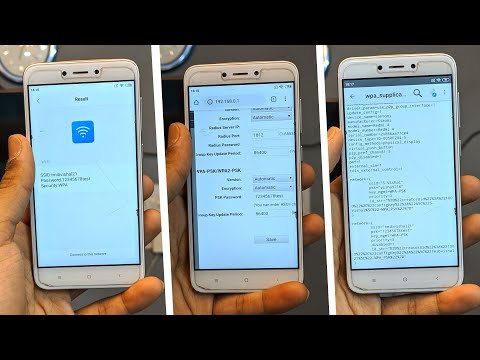
Title: 3 ways to see connected wifi password on Android
Channel: Vishal Singh
3 ways to see connected wifi password on Android by Vishal Singh
Wifi On Laptop
Steal Your Laptop's WiFi Password on Android: The Secret Trick!
Introduction: Navigating the Digital Labyrinth
We live in an era defined by connectivity. The ubiquitousness of Wi-Fi has transformed how we work, communicate, and entertain ourselves. Yet, the very convenience of wireless networks often obscures the underlying complexities of their security. This guide unveils a sophisticated, yet accessible method for retrieving your laptop's Wi-Fi password directly onto your Android device. We are not advocates of malicious activity. Instead, we champion responsible technology usage, providing knowledge that empowers you to understand and ultimately safeguard your own network. Assume for this walkthrough that you have physical access to your laptop. This article aims to educate on network security, not to promote illegal actions. Instead, we will show you how to retrieve saved WiFi passwords on your own machine, for your own devices, for personal use.
Prerequisites: Assembling Your Arsenal
For this operation, you'll need a few essential tools. The methods we'll explore leverage readily available resources, accessible on both your laptop and Android device. No prior hacking experience is required, but a fundamental understanding of file management and basic command-line operations will greatly streamline the process. The success of this process will depend on your operating system. Windows, macOS, and Linux systems manage their Wi-Fi profiles differently, yielding differing retrieval methods.
A Laptop (Windows, macOS, or Linux): This is your primary target – the repository of the desired Wi-Fi password. Ensure you have physical access to the laptop.
An Android Device: This is where you'll receive, and ultimately view, the Wi-Fi password. Make sure it has sufficient storage space.
USB Drive: A USB drive allows for easier file transfer from your laptop to your android device.
File Manager App for Android: Essential for navigating the Android file system and viewing the transferred password file. A file manager such as "Files by Google" will be more than adequate.
Laptop Administrator Privileges: You must have administrative rights on the laptop to access the necessary system files and execute certain commands. This is another requirement.
Unveiling Windows Wi-Fi Secrets: A Direct Approach
The Windows operating system stores Wi-Fi passwords in an encrypted format. Fortunately, the system provides a built-in method to reveal these passwords.
Open Command Prompt (Admin): Search for "cmd" in the Windows search bar. Right-click on "Command Prompt" and select "Run as administrator." This ensures you have the necessary permissions.
Execute the
netshCommand: Type the following command and press Enter:netsh wlan show profile name="[Your Network Name]" key=clear- Replace
[Your Network Name]with the actual name of the Wi-Fi network you want to retrieve the password for. Double-check the Wi-Fi network name to achieve better accuracy.
- Replace
Locate the "Key Content": The command will display a list of information about the Wi-Fi network. Look for the section labeled "Security settings." Within that section, you'll find a line titled "Key Content." The text next to "Key Content" is your Wi-Fi password.
Alternative Method using PowerShell (Admin): If the
netshcommand fails, try this as an alternative. Open PowerShell as an administrator (similar to the Command Prompt steps) and execute:(netsh wlan show profiles | Select-String " : " | ForEach-Object {$_.Line.Split(":")[1].Trim()}) | ForEach-Object {Write-Host "Profile: $_"; netsh wlan show profile name="$_" key=clear | Select-String "Key Content"}This PowerShell script lists all saved Wi-Fi profiles and displays their passwords.
Saving the Password: Carefully record the Wi-Fi password. For added measure, document all retrieved network names and their respective passwords to avoid confusion.
Decoding macOS Wi-Fi Credentials: A Keychain Exploration
macOS stores Wi-Fi passwords within its Keychain Access application. Here's how to access them:
Open Keychain Access: Navigate to Applications > Utilities > Keychain Access, or use Spotlight search (Command + Space) to find it.
Search for the Network: In the Keychain Access window, search for the name of the Wi-Fi network you're targeting.
Double-Click the Network: Double-click the network entry in the list to open its information window.
Check "Show Password": Check the box labeled "Show password." You'll be prompted to enter your macOS account password to authorize access to the keychain entry.
View the Password: Once authenticated, Keychain Access will reveal the Wi-Fi password in plain text.
Saving the Password: Note down the password. Consider copying and pasting it into a secure document, or writing it down.
Linux Wi-Fi Password Recovery: The Command-Line Conundrum
Linux distributions, such as Ubuntu or Debian, generally store Wi-Fi passwords in the wpa_supplicant.conf file or a similar configuration file.
Open the Terminal: Launch your terminal application.
Locate the Configuration File: Standard locations include
/etc/NetworkManager/system-connections/or/etc/wpa_supplicant/wpa_supplicant.conf. The exact path may vary depending on your distribution. Use thelscommand with the appropriate path to find the relevant file.View the File contents: Use the following command to open the configuration file:
sudo cat /etc/NetworkManager/system-connections/[Your Network Name].nmconnection- Replace
[Your Network Name]with the name of the Wi-Fi network you want to retrieve the password for. - If you can't find the filename, use
ls /etc/NetworkManager/system-connections/and find the appropriate file name. - Examine the document. Search for
pskor similarly titled key-word that indicates the password, which is almost always a string of characters.
- Replace
Extract the Password: The Wi-Fi password will be listed alongside the network name and other configuration details.
Alternative approach: Use
nmcli dev wifi listto find the right network. Then, usenmcli con show [Your Network Name]to gain more information.Saving the Password: Note down the password. Save it in a secure place.
Transferring the Password to Android: Bridging the Gap
Now that you've retrieved the Wi-Fi password, it's time to transfer it to your Android device.
File Transfer Methods: The easiest method is to use a USB drive. Alternatively, you can use Bluetooth to send the file to yourself.
Copy the Password (Windows): Copy the password from your Notepad file.
Copy the Password (macOS/Linux): Copy the password from your file containing the password.
Paste the Password: Paste the password into a safe file or document on your Android device. One can also directly enter the password into the appropriate Wi-Fi network settings.
Connecting to the Wi-Fi Network on Android
Open Android Settings: Locate the settings app on your Android device.
Navigate to Network & Internet or Wi-Fi: The exact wording may vary depending on your Android version. Tap on the relevant option.
Select Your Network: Find the Wi-Fi network you want to connect to in the list of available networks. It should have the same name as the network you retrieved the password for.
Enter the Password: Tap on your network, and when prompted, enter the password you retrieved.
Connect: Tap "Connect" or a similar button. Your Android device should now successfully connect to the Wi-Fi network.
Security Best Practices: Fortifying Your Digital Fortress
While this guide offers a straightforward method for retrieving saved Wi-Fi passwords, it also underscores the inherent importance of network security.
- Strong Passwords: Use strong, unique passwords for your Wi-Fi networks. Avoid easily guessable words, phrases, or personal information.
- Regular Password Changes: Change your Wi-Fi password periodically to mitigate the risk of unauthorized access.
- Network Encryption: Ensure your Wi-Fi network utilizes WPA2 or WPA3 encryption (the latest security standard) to protect data transmitted over the network.
- Guest Networks: If you share your Wi-Fi with guests, consider setting up a separate guest network with a different password to isolate your primary network.
- Firewall Protection: Enable a firewall on your laptop and Android device to block unauthorized network traffic.
- Software Updates: Keep your operating systems, security software, and apps updated to patch known vulnerabilities.
- Physical Security: Secure your laptop and Android device to prevent physical access by unauthorized individuals.
- Educate Yourself: Stay informed about the latest cybersecurity threats and best practices.
Disclaimer: This guide is for educational purposes only. We are not responsible for any misuse of this information. Remember to always respect the privacy of others and abide by all applicable laws and
