how to connect wifi from laptop
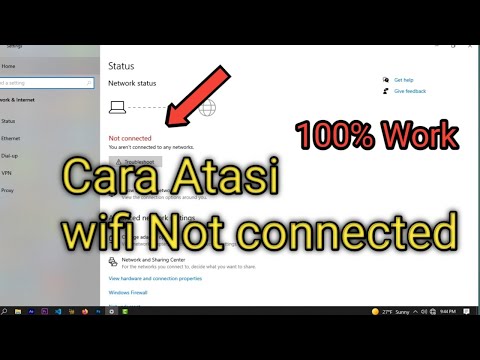
Title: Cara atasi WiFi tidak bisa connect di laptop not connected
Channel: ijal tutorial
Cara atasi WiFi tidak bisa connect di laptop not connected by ijal tutorial
how to connect wifi from laptop to phone, how to connect wifi from laptop to mobile, how to connect wifi from laptop to phone without password, how to connect wifi from laptop, how to connect wifi from laptop to pc, how to connect wifi from laptop to mobile phone, how to connect hotspot from laptop, how to connect internet from laptop, how to use wifi from laptop, how to connect wifi from laptop to tv
Laptop WiFi Nightmare? Solved in 60 Seconds!
Laptop WiFi Hell: Escape the Digital Dungeon in a Flash!
Ever feel like your laptop's WiFi is waging a personal war against your sanity? Is buffering the bane of your existence? You are not alone. Many of us have experienced the dreaded WiFi woes. Frustration flares when the digital world grinds to a halt. But what if I told you there was a quick fix? Believe it or not, you can banish those WiFi gremlins in mere seconds!
The WiFi Witchcraft: Unveiling the Culprits
Before we embark on our digital rescue mission, let's diagnose the problem. Often, the root of your WiFi suffering is surprisingly simple. It might be a rogue setting. Or, perhaps, the interference is from other devices. The good news? These culprits are usually easy to manage. Consider your router as the central hub of your internet connection. Think of the other devices as hungry vampires. They drain the bandwidth. They are vying for its precious resources. But fear not, the solution is within reach.
The 60-Second WiFi Salvation: Your Speedy Strategy
Ready to reclaim your internet speed? Follow these rapid-fire steps. First, let’s try the simplest fix. Restart your laptop. Close all unnecessary programs. Rebooting often works wonders. The reason? It clears the system’s memory. Doing so can resolve temporary glitches.
Next, consider the distance between your laptop and the router. Walls and other obstacles interfere with the signal. Moving closer is an easy adjustment. Then, check your router's status. Is it on? Rebooting it can often resolve connectivity issues. To restart it, unplug it from the power outlet. Wait about thirty seconds. Then, plug it back in. This often clears accumulated data.
Beyond the Basics: Level Up Your WiFi Game
These basic steps often do the trick. But, what if the problem persists? Let's explore some slightly more advanced tactics. Make sure your laptop's WiFi adapter drivers are up-to-date. Outdated drivers can be a significant cause of problems. Visit your laptop manufacturer's website. Find the latest drivers for your adapter. Follow their instructions to install them. Now is a good time to check your router settings. Your router may be using the wrong channel. Switching to a less crowded channel can improve performance. Consult your router's documentation for instructions.
Conquering Interference: A Digital Detox for Your Signals
Think of your home network as a busy street. Too much traffic causes a jam. Your laptop’s WiFi signal is no exception. So, consider what devices are broadcasting on the same frequency. Microwaves and cordless phones are often culprits. Try moving these devices. Consider where your router is placed. Position it in a central and open location. This boosts its signal strength.
Securing Your Network: Protecting Your Digital Fortress
WiFi security is paramount. A secure network is a faster network. It prevents unwanted users from hogging your bandwidth. Use a strong password for your WiFi network. Be sure to use WPA2 or WPA3 encryption. These encryption protocols safeguard your data. Enable your router’s firewall. It adds another layer of protection. Periodically change your password. This practice minimizes security risks.
Troubleshooting Tips: The WiFi Whisperer's Guide
Still struggling? Let’s explore other options. First, run a network troubleshooter. Your operating system has built-in tools. They diagnose and fix common problems. Use the network diagnostics tool. Consider your internet service provider (ISP). Perhaps, there is an issue on their end. Contact them to inquire about outages. Finally, if all else fails, consider a WiFi range extender. This device boosts the signal. It can cover a larger area.
The Final Verdict: Unleash Your Internet Potential!
Congratulations! You now have the arsenal to conquer your WiFi woes. You understand the causes. Now, you have tactics to solve them. You can troubleshoot connectivity. You can optimize your home network. So, embrace the digital age. Enjoy seamless browsing, streaming, and gaming. You’ve taken control of your internet destiny! From now on, you can solve your WiFi problems in mere seconds. Embrace fast, reliable internet connectivity. You deserve it.
HP Laptop Wifi Nightmare? (Solved!) Windows 10 Reboot Fix!Laptop WiFi Nightmare? Solved in 60 Seconds!
We've all been there. Staring at the buffering wheel of doom, watching our online lives grind to a frustrating halt. That laptop WiFi signal, once a symbol of freedom and connectivity, transforms into a digital villain, taunting us with its intermittent weakness. But what if I told you that your laptop WiFi nightmare could be over in, well, roughly 60 seconds? Seriously! Let's dive in, shall we?
1. The Ghost in the Machine: Understanding Your WiFi Woes
Before we even touch a button, we need to diagnose the problem. Think of your WiFi like a garden hose. If it's crimped, the water (internet) flow is restricted. Similarly, several things can stifle your WiFi signal. Are you too far from your router? Are there thick walls or metal objects in the way, blocking the signal's path? Is your router overloaded with too many connected devices, like a party overflowing with guests? We need to pinpoint why your connection is weak before we can fix it.
2. Router Reboot: The Universal Cure (and Why It Works)
This is the digital equivalent of "turning it off and on again." Rebooting your router is the first thing we should try. It's the equivalent of giving your router a fresh start, like resetting the brain of your digital companion. Think of it like hitting the 'reset' button for your router. Unplug it, wait about 30 seconds (yes, count!), and then plug it back in. Give it a couple of minutes to reboot, and see if the problem is solved. Often, this simple step is all it takes.
3. Distance Makes the Heart Grow Fonder… of Stronger WiFi
Literally! The further your laptop is from your router, the weaker the signal. Think of it like shouting across a field – the farther you are, the harder it is to hear. Try moving your laptop closer to your router. If that solves the problem, then you know where the issue lies. Maybe consider repositioning your router for optimal signal dispersion. Putting it higher up, rather than on the floor, can sometimes work wonders. Like, magic!
4. Obstacle Course: Clearing the Path for Your Signal
WiFi signals are like tiny, invisible waves. They don't like obstacles. Thick walls, metal objects (like refrigerators or filing cabinets), and even mirrors can interfere with the signal's journey. Imagine trying to listen to a concert with a giant sheet of metal in front of the stage. See if you can identify any potential signal blockers between your laptop and your router. Moving them, or moving your laptop, could be the solution.
5. Interference Wars: Other Devices Battling for Bandwidth
Just like a congested highway, too many devices sharing the same WiFi channel can cause slowdowns. Think of your router as a highway, and each device is a car. If you have multiple devices streaming videos, playing games, or downloading large files simultaneously, things can get sluggish. Try disconnecting some devices to see if this improves your WiFi speed on your laptop. Sometimes a temporary disconnect is all it takes.
6. Channel Surfing: Finding the Right WiFi Lane
Your router broadcasts its signal on a specific 'channel'. Just like radio stations, different channels can experience interference. Most routers automatically select the best channel, but sometimes it needs a helping hand. Access your router's settings (usually by typing its IP address into your web browser – check your router's manual for the specific address) and look for the "Wireless Channel" option. Experiment with different channels (1, 6, or 11 are often recommended) to find the one that works best for your environment.
7. Driver Dilemma: Ensuring Your Laptop's Up-to-Date
Your laptop's WiFi card needs the right drivers – the software that allows it to communicate with your router. Outdated drivers can lead to connectivity issues. Check your laptop manufacturer's website for the latest WiFi drivers for your specific model. Installing the correct driver is crucial for optimal performance. It's like giving your laptop a digital flu shot.
8. The Hidden Culprit: Malware Mayhem
Sometimes, the cause isn't your router at all, but something lurking inside your laptop. Malware can hog system resources and slow down your internet connection. Run a full scan with your antivirus software to eliminate the possibility of a digital virus taking over. A clean machine is a happy machine!
9. Optimize Bandwidth: Prioritize your connection
If multiple devices are connected, you can prioritize your laptop's connection and make it a VIP. Log into your router's settings, look for QoS (Quality of Service), and prioritize the device's connection (laptop) that demands the most bandwidth.
10. Reset Network settings: like starting over
Sometimes, the settings are not set correctly. Reset your network settings and then re-enter the Wi-Fi credentials like password and network name for a fresh start.
11. Troubleshoot with Windows or Mac
Windows and Mac OS have built-in troubleshooters. Go to your network settings, click troubleshoot, and let the system automatically guide you through the process by finding the possible problems with the Wi-Fi connection and offering solutions.
12. Check Your Plan: Is the Pipe Big Enough?
Are you on a slow internet plan? The bottleneck can be your internet service. If you're paying for, say, a 25 Mbps plan but consistently get much less, it might be time to upgrade. Contact your service provider to check the actual bandwidth you're getting.
13. Hardware Upgrade: A New Router on the Horizon?
If you've tried everything and still have WiFi woes, your router might be the culprit. An older router may not handle the demands of modern devices and can cause problems. Consider upgrading to a newer, more powerful router, especially one that supports the latest WiFi standards like 802.11ac or the even faster 802.11ax (WiFi 6). Think of it as trading in your old, clunky car for a sleek, new model offering the latest performance and safety features.
14. Extend Your Reach: WiFi Extenders and Mesh Networks
If your house is large, or your router's placement is problematic, a WiFi extender or a mesh network could be the answer. Extenders amplify your existing WiFi signal, while mesh systems create a seamless WiFi network throughout your home, like a digital web. They are especially useful if you have dead zones.
15. Call in the Cavalry: Seeking Professional Help
If all else fails, it's time to call in the experts. Contact your internet service provider or a local tech support company. They can diagnose more complex issues and offer specialized solutions. Think of it as getting a mechanic for your digital vehicle.
We've tackled the most common WiFi problems and offered solutions within a time frame of, say, a minute or two. Now, with this information, you're equipped to wrestle back control of your digital life! Remember, solving those laptop WiFi nightmares doesn't have to be a stressful ordeal. By systematically working through these steps, you can restore a fast, reliable internet connection and get back to enjoying all that your laptop has to offer.
FAQs
1. My WiFi is slow, but other devices work fine. What's wrong?
It's highly likely an issue with your specific laptop's drivers, hardware, or settings. Double-check your driver updates, ensure you are not too far from the router, and consider performing a full system scan for malware.
2. How often should I reboot my router?
It's a good practice to reboot your router at least once a month. This helps clear out temporary files and refresh the connection. Some people even reboot theirs weekly.
3. Why does my WiFi speed fluctuate?
This could be due to interference from other devices, network congestion, or the distance between your laptop and router. You may also experience fluctuating speeds if several people are using the same network simultaneously.
4. Is a WiFi extender better than a mesh network?
It depends. Extenders are a more basic option. Mesh networks provide more complete and seamless coverage, especially for larger properties, as it generates a single network.
5. What should I do if nothing is working?
Try contacting your internet service provider or consult a qualified local tech support company. They possess more specialized experience that can address more complex issues.
1) Principal Keywords: Laptop WiFi Fix 60 Seconds 2) SEO Headline: Laptop WiFi Fixed in 60 Seconds? Solve It Now! 3) Pathway: Laptop-WiFi-Fix 4) Meta Summary: Fix your Laptop WiFi nightmare FAST! We'll show you how to fix your WiFi connection in under 60 seconds with simple steps. Read now for a flawless connection! 5) Image Alt Text: Laptop connecting to wifi with an arrow pointing toward the internet.
Unlock Your Free PLDT WiFi: The Laptop Trick You NEED!How to Add Wireless Wifi Network Manually in Windows 10 PC or Laptop
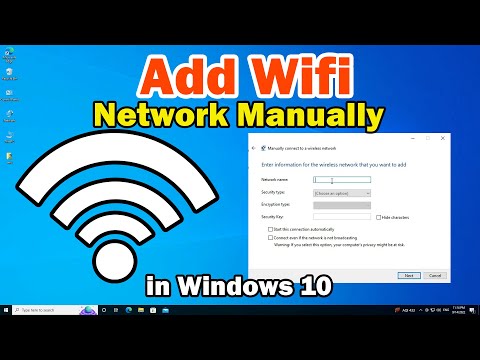
By Discover You How to Add Wireless Wifi Network Manually in Windows 10 PC or Laptop by Discover You
how to connect WiFi in laptop

By Tuto2Info Videos how to connect WiFi in laptop by Tuto2Info Videos
How to Connect WiFi in Laptop

By Gadget Lover How to Connect WiFi in Laptop by Gadget Lover

Title: Cara Mengatasi Wifi Laptop tidak Muncul
Channel: OTOTECH TV
Cara Mengatasi Wifi Laptop tidak Muncul by OTOTECH TV
Wifi On Laptop Phone
Laptop WiFi Nightmare? Solved in 60 Seconds!
The frustration is palpable. You're poised to conquer that deadline, to stream your favorite show, to connect with loved ones across the globe, but instead, your laptop's WiFi is a flickering, unreliable phantom, mocking your digital ambitions. We've all been there. That agonizing wait for a webpage to load, the dropped video calls, the infuriating error messages – these are the hallmarks of a WiFi crisis, and it can bring your productivity to a grinding halt. But before you resign yourself to cable-bound existence, let's banish the WiFi demons. Forget complex troubleshooting guides and hours wasted in the settings abyss. We're aiming for a rapid solution, and we’re going to achieve it.
Diagnosing Your WiFi Woes: Understanding the Culprits
Before wielding a virtual wrench, we must understand the potential gremlins lurking within your network. Your laptop's connection difficulties often stem from a few primary troublemakers. Pinpointing the likely cause streamlines the troubleshooting process, saving precious minutes and restoring your sanity.
Router Issues: Your router, the gatekeeper of your internet connection, is the most common culprit. It can be overloaded, experiencing temporary glitches, or simply in need of a reboot.
Weak WiFi Signal: Distance, physical obstructions (walls, appliances), and interference from other devices can weaken your WiFi signal, leading to dropped connections and slow speeds.
Driver Problems: Your laptop's network adapter, the component responsible for communicating with your router, requires up-to-date drivers for optimal performance. Outdated drivers can cause compatibility issues and connectivity problems.
Operating System Glitches: Your operating system (Windows, macOS) manages your network connections. Sometimes, internal issues within the OS can interfere with your WiFi.
Interference: Other electronic devices operating on the same frequency (2.4 GHz or 5 GHz) as your router can create interference, disrupting WiFi signals. Microwaves, cordless phones, and even Bluetooth devices can be the source.
The 60-Second WiFi Fix: A Step-by-Step Guide
Now, let's get to the heart of the matter: the rapid-fire solutions designed to resurrect your laptop's WiFi within a minute.
Step 1: The Power Cycle - The Digital Reset
This is the digital equivalent of a reset button, and it's often the most effective first step. Perform the following sequence:
- Unplug Your Router: Locate your router (the box supplied by your internet provider) and unplug it from the power outlet. Leave it unplugged for a full 30 seconds. This allows it to fully reset and clear any temporary glitches it may be experiencing.
- Unplug Your Modem (If Applicable): If your router and modem are separate devices, unplug the modem as well. Wait another 30 seconds.
- Plug Back In: Plug the modem back in first, allowing it to fully power up and establish a connection (usually indicated by solid lights). Then, plug your router back in.
- Wait for Connection: Give the router 2-3 minutes to fully boot up and reconnect to the internet.
- Test Your Connection: Once the router is back online, check your laptop's WiFi connection to see if the problem has been resolved.
Step 2: The Quick Driver Check - Ensuring Compatibility
Outdated network drivers can cause persistent connectivity issues. Here’s a quick check to update them.
- Windows:
- Press the Windows key and the X key simultaneously.
- Select "Device Manager" from the menu.
- Expand the "Network adapters" section.
- Right-click on your wireless network adapter (it might be named something like "Intel Wireless-AC 9260" or "Realtek 8821CE Wireless LAN 802.11ac PCI-E NIC").
- Select "Update driver."
- Choose "Search automatically for drivers." Windows will search for and install the latest drivers.
- macOS:
- Click the Apple menu (top-left corner of your screen).
- Select "System Preferences."
- Click "Software Update."
- If any updates are available, including network driver updates, install them.
- Restart Your Laptop: After updating drivers, restart your laptop for the changes to take effect.
Step 3: The Signal Strength Test - Proximity Matters
Your WiFi signal's strength plays a crucial role in your internet experience.
- Get Closer to the Router: Physically move your laptop closer to your router. If your connection significantly improves, your distance from the router is likely the issue.
- Remove Obstructions: Ensure nothing is blocking the direct line of sight between your laptop and the router. Thick walls, metal objects, and appliances can interfere with WiFi signals.
- Consider Router Placement: Position your router in a central, elevated location in your home to maximize signal coverage.
Step 4: The Channel Check - Reducing Interference
WiFi routers operate on different channels. Overlapping signals or congestion on a particular channel can create interference.
- Access Your Router's Settings: Open a web browser and type your router's IP address into the address bar (usually 192.168.1.1 or 192.168.0.1; refer to your router's manual if necessary).
- Log In: Enter your router's username and password (often "admin" and "password" or a variation).
- Find the Wireless Settings: Navigate to the wireless settings section (usually labeled "Wireless," "Wi-Fi," or similar).
- Change the Channel: Look for the "Channel" or "Wireless Channel" option. Experiment with different channels (e.g., 1, 6, or 11 for 2.4 GHz; or multiple options from the 5 GHz range) to find the least congested one.
- Save and Restart: Save your changes and restart your router.
- Test Your Connection: Check your laptop's WiFi connection after the router has rebooted.
Advanced Troubleshooting: When the Quick Fix Fails
If these initial steps fail to resolve your WiFi troubles, don't despair. More in-depth solutions are needed.
1. Diagnose the Problem with Network Tools:
- Windows: Use the built-in Network Troubleshooter. Right-click the WiFi icon in the system tray and select "Troubleshoot problems." This tool can often identify and fix minor issues. Also, utilize "ping" to check the connection. Press the Windows key, search for "cmd," and follow the command
ping google.com. If you receive replies, it indicates you have internet connection. - macOS: Use the "Network Utility" located in the "Utilities" folder (Applications -> Utilities). This tool can provide insights into your network configuration and help identify potential problems.
2. Investigate Router Settings Further:
- Update Router Firmware: Outdated router firmware can cause compatibility issues. Check your router manufacturer’s website for firmware updates and install the latest version.
- Check Security Settings: Ensure your router's security settings are configured correctly (e.g., WPA2 or WPA3 encryption). Weak security settings can leave your network vulnerable.
- Review Connected Devices: Access your router's admin panel to view a list of connected devices. This helps you identify any unauthorized users or bandwidth hogs.
3. Investigate Laptop Settings:
- Disable Power-Saving Mode: In your laptop’s power settings, disable any power-saving options that might be reducing your WiFi adapter's performance.
- Reinstall Network Adapter: If driver updates don’t work, try uninstalling your network adapter in Device Manager (Windows) and then restarting your laptop. Windows will automatically reinstall the adapter and might resolve the problem.
- Create a New Network Profile: Sometimes, a corrupted network profile can cause connectivity issues. Delete the existing WiFi network profile on your laptop and create a new one.
4. External Factors to Consider:
- ISP Issues: Contact your internet service provider (ISP) to inquire about outages or service disruptions in your area.
- Interference from Other Devices: Try turning off other electronic devices that might be interfering with your WiFi signal, such as microwaves, cordless phones, Bluetooth speakers, and baby monitors.
- Physical Damage: Check your laptop's network adapter for any signs of physical damage.
- Antivirus/Firewall Interference: Temporarily disable your antivirus software or firewall to determine if they are blocking your WiFi connection. Remember to re-enable the software immediately afterward.
5. Seek Further Professional Assistance:
If the WiFi issues persist, it's time to consider expert help. Contact your ISP, a local computer repair shop, or a network specialist. They can perform more advanced diagnostics and provide tailored solutions.
Prevention is Key: Maintaining Optimal WiFi Performance
Once you've conquered your WiFi woes, let's establish some habits that will help you avoid future headaches.
- Regular Driver Updates: Enable automatic driver updates for your laptop to ensure your network adapter always has the latest software.
- Secure Your Network: Use a strong password for your WiFi network and enable encryption
