how to get bt wifi on laptop

Title: How to Upgrade Your Laptop Wi-Fi to 5GHz Bluetooth 5.0 Combo Adapter Install
Channel: Electronics&Computers
How to Upgrade Your Laptop Wi-Fi to 5GHz Bluetooth 5.0 Combo Adapter Install by Electronics&Computers
Unlock Super-Fast BT WiFi on Your Laptop: The Secret Trick!
Supercharge Your Laptop's BT WiFi: The Hidden Speed Booster!
Ever felt like your BT WiFi connection was playing hide-and-seek with your laptop? You’re not alone, and frankly, it's frustrating! We've all experienced the dreaded buffering wheel, the slow page loads, and the general feeling of being stuck in internet molasses. But what if I told you there’s a secret handshake, a hidden trick, to unlock warp-speed BT WiFi directly on your laptop? Because there is!
Spotting the WiFi Bottleneck: Are You Actually Getting What You Pay For?
Before we dive in to the solution, let's do some quick diagnostics. The truth is, many things can curb your internet speed. Your laptop's age is a factor. Its Wi-Fi card may be outdated. Perhaps your router location could be the problem. Also, consider the number of connected devices hogging bandwidth. However, those aren't the only culprits.
The Real Culprit: Connection Settings & Their Speedy Secrets
Often, the real bottleneck is your laptop’s WiFi settings. Many devices operate on default configurations, hindering optimal performance. These settings might not be configured to maximize your available BT WiFi speed. Therefore, we need to make a few tweaks. Let's get started!
Unveiling the Secret Trick: A Step-by-Step Guide to WiFi Bliss
Ready to unleash the true potential of your BT WiFi? Excellent! Following these steps can make a noticeable difference.
- Accessing Your Network Adapter Settings: First, click on that little WiFi icon in your system tray. Right-click on your active BT WiFi connection. Now, select "Open Network & Internet settings." This will open a new window.
- Navigating to Adapter Options: In the new window, locate "Change adapter options." Click on this to enter the next section.
- Identifying Your WiFi Adapter: You'll see a list of network adapters. Identify the one associated with your BT WiFi connection. Usually, it’s the one labeled "Wi-Fi" or something similar.
- Opening Properties: Right-click on your WiFi adapter. Afterward, select “Properties." A properties window will appear.
- Configuring Properties: In the properties window, select “Configure” from the "Networking" tab. It’s a little deeper, but we're almost there!
- Advanced Tab Adventures: A new window appears. Within this, navigate to the "Advanced" tab. This is where the magic happens.
- Finding the Critical Settings: In the "Property" list, you'll find several important settings. Specifically, we want to focus on a few key areas.
- Wireless Mode: Look for the “Wireless Mode” setting. Select the best available option. Choose the most advanced standard supported by your router and laptop. For most modern setups, this will probably be "802.11ac" or "802.11ax".
- 802.11a/b/g or 802.11n: If you have an older router, look for 802.11a/b/g or 802.11n. Select the one that's working best for your device and configuration.
- Channel Width: Discover the "Channel Width" setting. Set this to the highest available option. Choose "20/40 MHz" for older routers or "80 MHz" or "160 MHz" for newer models. This maximizes bandwidth.
- Saving Your Changes: Click "OK" to save the changes in each of the windows. Restart your laptop if prompted.
Troubleshooting Common Issues: When Things Don't Go as Planned
Okay, so you've followed the instructions, and something doesn't seem right? Don't worry! Many things may be at play.
- Driver Updates: Make sure your WiFi adapter drivers are up to date. Outdated drivers can restrict performance. Visit your laptop manufacturer’s website for the latest driver downloads.
- Router Compatibility: Verify your router supports the settings you've chosen. Older routers may not support the latest standards.
- Interference Issues: Other WiFi networks or electronic devices can cause interference. Try moving your laptop closer to the router. You could also change the router's WiFi channel in its configuration settings.
- Restart Your Router: Sometimes, a simple router restart works wonders. Unplug the power cable for about 30 seconds, then plug it back in.
- Contact BT Support: If all else fails, contact BT support. They are always willing to help.
Beyond the Trick: Maintaining Optimal WiFi Performance
Once you've applied the secret trick, keeping your BT WiFi at peak performance is important. This involves some consistent practices.
- Router Placement: Place your router in a central, elevated location, away from obstructions. Walls, appliances, and metal objects disrupt WiFi signals.
- Security: Secure your WiFi network with a strong password. An unsecured network is an open invitation for bandwidth thieves.
- Regular Check-Ups: Periodically review your WiFi settings. Ensure everything is configured optimally.
- Monitor Usage: Keep track of the devices connected to your WiFi. Too many devices can strain your connection.
- Consider a WiFi Extender: If you have a large home, consider using a WiFi extender. Extend your network coverage to eliminate dead zones.
The Verdict: Unleashing the Power Within
So, there you have it! That “secret trick” is not so secret anymore. You now have the knowledge to optimize your laptop's BT WiFi connection. You should experience faster speeds. These simple adjustments can transform your browsing experience. Go forth and enjoy the freedom of a blazing-fast internet connection! Happy browsing!
Turn On Your Acer Laptop WiFi: The SHOCKING Secret Nobody's Telling You!Unlock Super-Fast BT WiFi on Your Laptop: The Secret Trick!
Hey tech-savvy readers! Ever felt like your BT WiFi connection is stuck in the dial-up era? You’re juggling your laptop, the latest streaming service, and praying the buffering wheel doesn't make an appearance. We've all been there, haven't we? Well, buckle up, because we're about to unlock a secret – a trick – that could catapult your BT WiFi speed into warp speed. I remember the days of painstakingly waiting for that YouTube video to load (and often failing). Let's leave those dark ages behind!
1. The BT WiFi Blues: Why Is It So Slow?!
Let's get real. Sometimes, BT WiFi can feel slower than a snail on molasses. Is it the router's fault? Your laptop's ancient soul? The universe conspiring against you? The truth? It’s often a combination of factors. Think of it like a busy highway – everyone’s trying to access the same bandwidth at the same time. Plus, your laptop itself can be a bottleneck. Old drivers, background apps hogging resources – they’re all culprits in the sluggish WiFi saga. Consider your laptop as a race car, and the WiFi connection as the fuel line. A rusty fuel line (your laptop's inefficiencies) will hinder even the most powerful engine (your BT connection).
2. Decoding the BT WiFi Connection: A Primer
Before we unleash the secret weapon, let's understand how BT WiFi works. It’s like a digital handshake between your laptop and the router. Your laptop sends out a request, the router acknowledges it, and voila – you’re connected! But what if that handshake is weak, or the signal is getting jammed by interference? This is where things get interesting. Think of WiFi signals as invisible radio broadcasts, and your laptop as a radio receiver. If the radio is tuned to the wrong station, or the signal's getting muddy, you're not going to get the clear broadcast you crave.
3. The Common Culprits: What's Holding You Back?
- Distance from the Router: The further away you are, the weaker the signal. It’s like trying to whisper to a friend across a football field – not ideal, right?
- Obstacles: Walls, furniture, even your Christmas tree can interfere with the signal. Think of these as digital roadblocks.
- Router Overload: If too many devices are connected, the bandwidth gets spread thin. Like sharing a single pizza with a hungry crowd.
- Outdated Hardware: Your laptop's WiFi card might be ancient. It's like trying to run a marathon in flip-flops.
- Software Clutter: Background apps and outdated drivers can slow things down.
4. Fine-Tuning Your Laptop: Prepping for the Speed Boost
Before we unleash the secret, let’s do a quick check-up on your laptop. This is like giving your car a tune-up before a race.
- Update Your Drivers: Outdated drivers are a major performance killer. Google your laptop model and "WiFi drivers" to get the latest.
- Close Unnecessary Apps: Think of these as extra passengers weighing down the car. Shut them down!
- Run a Virus Scan: Malware can hog your system resources, including your WiFi.
- Check Your Router's Firmware: Keeping your router updated is essential for security and performance.
5. The Secret Weapon Revealed: The Channel Changer!
Alright, here it is! The secret to unlocking super-fast BT WiFi: changing your router's WiFi channel. Think of it like switching radio stations to find a clearer signal. Most routers automatically select a channel, but often, your neighbors' routers are using the same one, causing interference.
6. Finding the Best Channel: The Detective Work Begins
- Access Your Router's Settings: Usually by typing its IP address (like 192.168.1.1 or 192.168.0.1) into your browser. Check your router's manual if you're unsure. You'll need your router's username and password.
- Locate the WiFi Channel Settings: This is usually under the "Wireless" or "WiFi" section.
- Scan for the Least Congested Channel: Many routers have a built-in channel analyzer. Alternatively, download a WiFi analyzer app on your phone or laptop. These apps show you which channels are being used by other networks (we are now detectives looking for evidence of clear signals!).
- Choose a Channel: Select the least crowded channel. Channels 1, 6, and 11 are often recommended as they don’t overlap.
7. Step-by-Step Guide: Changing Your Router's Channel
Okay, let’s get practical:
- Log in to Your Router: Enter your username and password.
- Navigate to Wireless Settings: Locate the WiFi settings, probably labeled “Wireless,” “WiFi,” or similar.
- Find the Channel Setting: There will be a dropdown menu or a list of available channels.
- Select Your Channel: Choose the channel you identified as the least congested.
- Save Your Changes: The router will reboot. Your WiFi will temporarily disconnect.
8. Testing the Results: Proof is in the Pudding
After changing the channel, give your laptop a fresh reboot and test your WiFi speed. Run a speed test from a website like Speedtest.net. Compare the results to your previous speeds. Were you able to witness significant improvement? Let me know in the comments!
9. Troubleshooting: What If It's Still Slow?
Sometimes, even the best secret weapon needs a little tweaking.
- Try Different Channels: Experiment with a few different channels to see which works best.
- Move Your Router: Try repositioning your router to eliminate obstructions. A central, elevated location is usually ideal.
- Consider a WiFi Extender: If your house is large, a WiFi extender can boost the signal range (like a megaphone for your internet).
- Contact BT: If all else fails, it's worth checking with BT to see if there's an issue on their end.
10. Beyond the Trick: Other Ways to Supercharge Your WiFi
- Upgrade Your Router: A newer router with the latest WiFi standards (like WiFi 6 or WiFi 6E) can significantly improve performance. Think of it like upgrading from a bicycle to a sports car.
- Use Ethernet Cables: For the ultimate speed, connect your laptop directly to the router with an Ethernet cable. This bypasses the WiFi entirely.
- Manage Your Devices: Limit the number of devices streaming or downloading simultaneously.
11. Avoiding WiFi Interference: A Proactive Approach
- Keep Your Router Away from Appliances: Microwaves, Bluetooth devices, and other electronics can interfere with your WiFi signal.
- Shield Your Router: Consider placing your router in a cabinet or using a router cover to reduce interference.
- Regularly Reboot Your Router: A simple reboot can often clear up temporary glitches.
12. The Future of WiFi: Staying Ahead of the Curve
The technology behind WiFi is constantly evolving. WiFi 6 and 6E offer faster speeds, lower latency, and increased capacity. Keeping abreast of these innovations will ensure you have the best possible experience.
13. Security First: Tips for a Secure BT WiFi Connection
- Use a Strong Password: Make sure your WiFi password is complex and difficult to guess.
- Enable WPA3 Encryption: This is the latest and most secure WiFi encryption standard.
- Regularly Update Your Router's Firmware: Security updates are crucial for protecting your network.
14. Maximizing Your BT WiFi Experience: A Holistic View
Consider your entire home network. This includes your devices, router placement, and even your internet plan. A holistic approach will yield the best results. Think of it as setting the scene for a perfect streaming experience.
15. Celebrating the Speed Boost: Enjoying Your Faster WiFi!
Congratulations! You've unlocked the secret. Now, go forth and enjoy your super-fast BT WiFi! Stream, download, browse, and connect without the frustration of buffering.
Image Caption: "Laptop user enjoying a fast BT WiFi connection after applying the secret trick."
Image Alt Text: Fast WiFi laptop user
The world of super-fast BT WiFi is now at your fingertips.
Closing Thoughts
We've uncovered the secret, offered some tips, and equipped you with the knowledge to transform those sluggish connection days into a distant memory, remember every time you have issues, you know exactly what to do. We're all in this together! Let's make the internet a happy place, one blazing-fast connection at a time!
Frequently Asked Questions (FAQs)
- Will changing the channel really make a difference? Absolutely! It's often the single most effective thing you can do to improve WiFi performance, especially if you live in a busy area with many other WiFi networks.
- Is it safe to change my router's channel? Yes, it's perfectly safe. There's no risk of damaging your router. You can always change the channel back if you experience any problems.
Here's how to get Bluetooth on your PC

By ADVANTI Here's how to get Bluetooth on your PC by ADVANTI
How to Add Wireless Wifi Network Manually in Windows 10 PC or Laptop
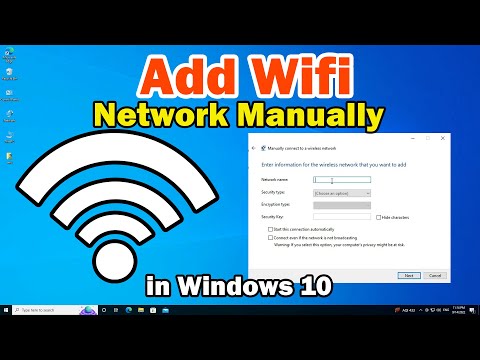
By Discover You How to Add Wireless Wifi Network Manually in Windows 10 PC or Laptop by Discover You
Fix WiFi Not Showing in Settings On Windows 10 Fix Missing WiFi 2025
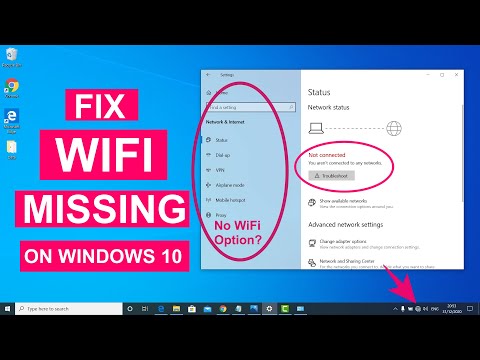
By Sandeep Singh Fix WiFi Not Showing in Settings On Windows 10 Fix Missing WiFi 2025 by Sandeep Singh

Title: WiFI Card vs USB WiFi Adapter Check out this comparison
Channel: ADVANTI
WiFI Card vs USB WiFi Adapter Check out this comparison by ADVANTI
Laptop Wifi Connect
Unlock Super-Fast BT WiFi on Your Laptop: The Secret Trick!
Have you ever found yourself wrestling with sluggish internet speeds, particularly when trying to connect to BT WiFi on your laptop? The tantalizing promise of free or affordable WiFi morphs into a frustrating battle against buffering videos, frozen downloads, and the agonizing crawl of web pages. We understand your pain. We've spent countless hours troubleshooting and optimizing our own BT WiFi connections, and we're thrilled to share a secret – or, rather, a series of carefully honed techniques – to unlock the true potential of those super-fast speeds you're entitled to. Prepare to experience BT WiFi on your laptop like never before.
Understanding the BT WiFi Ecosystem: Your Launchpad to Speed
Before diving into the specifics, let's briefly demystify the BT WiFi landscape. BT WiFi, formerly known as BT Openzone, operates using a vast network of hotspots across the UK, from bustling city centers to quaint rural locations. Accessing these hotspots typically involves logging in with your BT ID (for BT Broadband customers) or purchasing a WiFi voucher. The infrastructure itself is designed to deliver fast internet, but the actual speed you experience can be influenced by several factors, including the number of connected users, the distance from the hotspot, and, critically, the configuration of your laptop's wireless settings. This final point is where the secret lies.
Step 1: Optimizing Your Wireless Network Adapter: The Foundation of Speed
Your laptop's wireless network adapter is the gateway to BT WiFi. It's crucial to ensure this gateway is optimally configured. Here’s how to do it:
Access Device Manager: Press the Windows key, type "Device Manager," and press Enter. Alternatively, right-click the Start button and select "Device Manager."
Locate Your Wireless Adapter: Expand the "Network adapters" section. You will find your wireless adapter listed (e.g., "Intel Wireless-AC 9560," "Realtek RTL8821CE Wireless LAN 802.11ac Network Adapter").
Access Adapter Properties: Right-click on your wireless adapter and select "Properties."
Navigate to the Advanced Tab: Click the "Advanced" tab in the Properties window. This is where the magic happens.
Configure Key Settings: Carefully adjust the following settings. These settings may vary depending on your specific adapter model, but the principles remain the same.
- 802.11n/ac/ax Mode (or similar): Select the fastest available standard. This will typically be "802.11ac" or "802.11ax" (if supported by your adapter and the WiFi hotspot). This ensures you are using the latest WiFi standards.
- Preferred Band: Choose "Prefer 5 GHz band." 5 GHz bands typically offer faster speeds and less congestion than the 2.4 GHz band. If the BT WiFi hotspot you are connecting to supports both, this will encourage your laptop to connect to the faster band.
- Wireless Mode (or similar): Set this to the highest possible value. This setting helps to maximize the range and the speed of data transmissions.
- Transmit Power: Choose "Highest" or "Maximum" to ensure your laptop transmits with sufficient power to connect consistently.
- Roaming Aggressiveness: Experiment with this setting. A lower setting can help maintain a stable connection, while a higher setting can help you connect to a stronger signal more quickly. Start with "Medium" and adjust as needed.
- Antenna Diversity: Enable this, if available.
- Wireless Mode: The best option is generally 'Auto'.
- Fragmentation Threshold: Leave this at the default setting (usually "2346"). Modifying this setting is generally not necessary and can sometimes decrease performance.
Apply Changes: Click "OK" to save your changes and close the Properties window.
Restart Your Laptop (Recommended): Restarting your laptop after making adapter setting changes can help ensure the new configurations are fully implemented.
Step 2: Deciphering the BT WiFi Login Process: Eliminating Login Headaches
Logging into BT WiFi can sometimes be surprisingly tricky. Common problems include incorrect passwords, outdated profiles, and browser compatibility issues. Here’s a systematic approach to ensure a seamless login every time:
Ensure You Have a Valid BT ID: If you are a BT Broadband customer, your BT ID is your username and password for accessing BT WiFi. If you're using a voucher, make sure you have the correct details.
Connect to the BT WiFi Network: Select the "BT WiFi" or "BT Openzone" network from your list of available WiFi networks on your laptop.
Open Your Web Browser: Launch your preferred web browser (Chrome, Firefox, Edge, etc.).
Attempt to Browse the Web: Try to visit any website (e.g., google.com). This action should redirect you to the BT WiFi login page. If it doesn't, try clearing your browser's cache and cookies and restart the browser.
Enter Your Login Credentials: Enter your BT ID username and password, or your voucher code, into the provided fields on the login page.
Accept the Terms and Conditions: Carefully read and accept the Terms and Conditions. This step is often overlooked but is essential for successful access.
Troubleshooting Login Issues:
- "Unable to Connect": Double-check your login details for any typos. Ensure Caps Lock is off.
- "Incorrect Password": Reset your BT ID password through the BT website or app by using your phone to receive an SMS.
- "No Login Page Appears": Try clearing your browser cache and cookies (instructions vary depending on your browser). Restart your browser, or try a different browser. If the issue persists, your laptop may have a conflicting setting such as a VPN or proxy that can cause login errors.
- "Page Not Found": The BT WiFi login server may be temporarily unavailable. Try again in a few minutes.
Remember Your Credentials (Optional, but Recommended): If you frequently use BT WiFi, your browser can save your login details for quicker access in the future. Use this feature with caution, keeping in mind computer security.
Step 3: Mastering Browser Optimization for Maximum Speed
Your web browser can significantly impact your perceived internet speed. Even with a fast BT WiFi connection, an inefficient browser can create bottlenecks. Here’s how to optimize your browser for peak performance:
Keep Your Browser Updated: Ensure your browser is running the latest version. Updates often include performance enhancements and bug fixes that can improve browsing speed.
Clear Your Cache and Cookies Regularly: Clear your browser's cache and cookies at least weekly (or more frequently if you browse heavily). This removes temporary files that can slow down browsing. Most browsers offer a simple "Clear browsing data" option in their settings.
Use a Lightweight Browser Extension Profile: Utilize a minimal set of browser extensions. While extensions can be helpful, too many can slow down your browser. Disable or remove any unnecessary extensions.
Disable Animated Ads: Consider using ad-blocking extensions to eliminate bandwidth-hogging animated ads from your browsing experience. This frees up resources and can significantly improve loading times.
Enable Hardware Acceleration (If Available): Most modern browsers have a "Hardware Acceleration" setting. Enabling this setting can offload graphics processing tasks to your computer's graphics card, which can improve rendering speed.
Manage Your Tab Usage: Avoid having too many tabs open simultaneously, as each open tab consumes system resources. Close tabs you are not actively using.
Step 4: Fine-Tuning Your Laptop's Operating System for Improved WiFi Performance
Your operating system (Windows, macOS, etc.) also plays a crucial role in WiFi performance. Here’s how to optimize your system for a smoother BT WiFi experience:
Keep Your Operating System Updated: Ensure your operating system is up-to-date. Updates often include driver updates and performance enhancements that benefit WiFi connectivity.
Update Your Network Drivers: Check for updated network drivers for your wireless adapter regularly. Device Manager can sometimes automatically install driver updates, or you can visit your laptop manufacturer's website to download the latest drivers.
Disable Background Applications: Close any resource-intensive applications running in the background. These applications can consume bandwidth and slow down your internet speed.
Scan for Malware: Run a full system scan with a reputable antivirus program to ensure your laptop is free from malware, which can sometimes interfere with network performance.
Optimize Power Settings: Ensure your laptop is configured for optimal performance when using WiFi. Go to your power settings and select a performance profile to avoid unnecessary power saving restrictions.
Disable Unnecessary Startup Programs: Reduce the number of programs that automatically launch when your laptop starts. This frees up system resources and speeds up your overall system performance.
Step 5: Troubleshooting Common BT WiFi Connection Issues
Even with the above optimizations, you might occasionally encounter connection issues. Here’s how to troubleshoot them effectively:
- Check the BT WiFi Hotspot Status: Ensure the hotspot is online and functioning correctly. You can sometimes check the status on the BT website or app, or by looking for other users connected to the same hotspot
