bc wifi windows laptop

Title: Mengatasi masalah wifi no internet pada komputer atau laptop
Channel: Paham Code
Mengatasi masalah wifi no internet pada komputer atau laptop by Paham Code
BC Wifi Nightmare? Conquer Your Windows Laptop's Connection NOW!
**Wi-Fi Woes? Your Windows Laptop & BC's Connection Chaos: Solved!
Are you wrestling with Wi-Fi on your Windows laptop? Does British Columbia's internet seem like a battlefield? You're certainly not the only one. Many people experience frustrating connection problems. But, hold on! We're here to turn your Wi-Fi frown upside down. Let’s get your laptop surfing smoothly.
The Phantom Connection: Unmasking the Culprits
First, let's understand the common demons. Wi-Fi issues often stem from a few sneaky sources. Your router might be the culprit. Or, perhaps your laptop's settings are misbehaving. Moreover, environmental factors can absolutely play a role. Consider your surroundings. Are you surrounded by electronic interference? That's something to consider, too.
Decoding the Signal: Router Revelation
Your router is the heart of your home network. Consequently, a weak signal is a critical problem. The first step is making sure your router is in a good location. It needs to be central and unobstructed. In addition, ensure it’s updated with the latest firmware. Older firmware frequently struggles. After that, consider restarting your router. This straightforward action resolves many hidden issues. Moreover, evaluate your router's range. Is it adequate for your home's size? If not, consider a range extender.
Laptop Lockdown: Troubleshooting Your Settings
Okay, let's zoom in on your Windows laptop. Sometimes, the problem isn't the Wi-Fi itself. Instead, it's your laptop's settings. First, navigate to your network settings. Then, verify your Wi-Fi adapter is enabled. If it is, try disabling and then quickly re-enabling it. This simple trick can often do the trick. Still struggling? Run the Windows Network Troubleshooter. It is designed to identify and correct common connection errors automatically.
Drivers' Difficulty: Maintaining Adapter Integrity
Your Wi-Fi adapter drivers need attention, too. Outdated or corrupted drivers trigger connection problems. Therefore, check your device manager. Locate your network adapter. Right-click and select "Update driver". Windows will then search for the latest version. However, if that fails, visit your laptop manufacturer's website. Download and install the newest driver from there. This directly addresses many frustrating issues.
Environmental Enemies: Battling Interference
Wi-Fi signals are fragile. Several things can interfere with them. Metal objects can block the signal. Microwaves also cause problems. Furthermore, cordless phones frequently disrupt Wi-Fi. So, reposition your router. Keep it away from these potential interference sources. You might be surprised by the improvement. Additionally, minimize the number of devices using the network simultaneously. This is critical for peak performance.
Channel Surfing: Optimizing Your Wireless Frequency
Routers broadcast on various channels. Many routers choose a channel automatically. But, sometimes, this isn't optimal. Neighboring Wi-Fi networks can use the same channel. This causes significant interference. Thus, you should use a Wi-Fi analyzer app. They identify the least congested channels. Then, adjust your router’s settings accordingly. This usually means accessing your router's configuration page.
Security Savvy: Password Protection and Encryption
Secure your Wi-Fi network. Strong passwords are fundamental. Use WPA2 or WPA3 encryption. These security protocols protect your network. They keep unwanted guests out. Moreover, regularly update your password. This is excellent practice. It helps to maintain a secure and efficient connection.
Speed Test Samurai: Measuring Your Connection Performance
Are you still encountering slow internet speeds? Now, test your download and upload speeds. Many websites offer free speed tests. Then, compare your results to your internet plan's advertised speeds. If there's a major discrepancy, contact your internet service provider. They are capable to investigate the issue.
The BC Factor: Specific Considerations for British Columbia
British Columbia's geography impacts Wi-Fi performance. Large distances and dense forests might interfere. Your location’s proximity to internet infrastructure also matters. Consider your ISP's service levels in your area. Moreover, consider your physical surrounding. Are you in an urban area? This might mean more Wi-Fi interference, sadly.
Final Words: Claiming Wi-Fi Victory!
Solving Wi-Fi problems can feel overwhelming, however, it certainly doesn’t have to be. By following the steps above, you can significantly improve your Windows laptop's connection. So, don't give up! Instead, be persistent. Keep trying different solutions. Moreover, if all else fails, contact a local computer technician. They are experts. Now, go forth and conquer your BC Wi-Fi woes!
HP 450 Laptop WiFi Driver Windows 10: INSTANT Download!BC Wifi Nightmare? Conquer Your Windows Laptop's Connection NOW!
Hey there, fellow Wi-Fi warriors! Let's be honest, we've all been there. You're staring at your Windows laptop, ready to conquer the digital world, but… gasp …the Wi-Fi symbol is sporting a sad little "X." Or worse, it's connected, but your browsing feels slower than a snail in molasses. Welcome to the BC Wi-Fi nightmare, a common affliction that plagues laptops everywhere. But fear not! We're diving deep to diagnose and defeat those connection woes, specifically focusing on the Windows laptop. Think of this as your essential survival guide. Time to transform those frustration-fueled sighs into triumphant digital fist-pumps!
1. The Dreaded "No Internet" Sign: Decoding the Initial Symptoms
Before we even begin, let's establish some common ground. That infuriating "No Internet" message is the first symptom. Maybe websites won't load. Perhaps your emails are stuck in limbo. Or you might be trying to video call Grandma, only to be met with robotic voices and frozen faces. These are all indicators something is amiss. But before you chuck your laptop out the window (we've all considered it), let's unravel the mystery. Is it truly the Wi-Fi or something else?
2. Is It Really Your Wi-Fi? A Quick Reality Check
Hold the panic button! Before you start blaming the router, ask yourself:
- Are other devices connected? Try your phone or another laptop. If they're working, the issue is likely with your Windows laptop.
- Is the router plugged in and powered on? Sounds silly, but it's a classic troubleshooting step. Check the lights!
- Restart everything. Seriously. Restart your laptop and your router. Sometimes, that's all it takes—a digital reset button.
If other devices are experiencing connectivity issues, the problem's probably not your laptop (though you might have a bigger Wi-Fi headache on your hands!). This initial assessment will prevent you from wasting time on unnecessary troubleshooting.
3. Diagnosing the Culprit: Exploring Common Windows Wi-Fi Problems
Assuming the problem is your laptop, let's delve into some common culprits:
- Driver issues. Think of drivers as the translators between your laptop and the Wi-Fi adapter. Outdated or corrupted drivers can cause major communication breakdowns.
- Network settings gone haywire. Your laptop's network configuration can sometimes get, well, confused.
- Hardware problems. In rare cases, the Wi-Fi adapter itself might be faulty.
- Interference. Your laptop's signal can be battling for air time with other devices. Think of it as a crowded radio station – all the sounds interfere!
- Software conflicts. Certain apps, especially security software, can sometimes hinder your connection.
Each of these issues requires a different approach. That's where this guide comes in.
4. Driver Doctor: Updating or Reinstalling Your Wi-Fi Driver
Let's get to the first major solution: the driver fix.
- Finding Your Wi-Fi Adapter:
- Right-click the Windows start button (the icon usually on the bottom left, looking like a Windows logo).
- Select “Device Manager.”
- Look for “Network adapters.” Click the arrow next to it. This will reveal your Wi-Fi adapter (it might be called something like "Wireless Network Adapter" or similar).
- Updating Your Driver:
- Right-click on your Wi-Fi adapter.
- Select “Update driver.”
- Choose “Search automatically for drivers.” Windows will hopefully find and install the latest version.
- Reinstalling Your Driver (If Updating Fails):
- Right-click on your Wi-Fi adapter again.
- Select “Uninstall device.” Caution: This will remove the driver from your system!
- Restart your laptop. Windows should automatically reinstall the driver when you boot up.
- Pro Tip: If the automatic reinstall fails, you might need to download the latest driver from the manufacturer's website (the website of your laptop brand, like Dell, HP, etc.). This requires knowing your specific laptop model, but it will usually be displayed on the lower part of your laptop.
5. Network Reset: A Fresh Start for Your Connection
Sometimes, the network settings are just a mess. A network reset can be like hitting the reset button on a board game to start anew.
- Open Settings:
- Type "Network reset" into the Windows search bar (bottom left, next to the Start button).
- Choose "Network reset" from the search results.
- Reset and Restart:
- Click "Reset now."
- Your laptop will restart. After that, you'll need to reconnect to your Wi-Fi network, entering your password.
6. Firewall and Antivirus Troubles: Check for Conflicts
Security software, though vital for protection, can inadvertently block your internet access.
- Temporarily Disable:
- Try disabling your antivirus software or firewall (temporarily!).
- See if the internet starts working.
- If it does, you know that's the culprit.
- Adjust Settings:
- If disabling the software fixes the problem, you’ll need to configure it to allow your Wi-Fi connection. Consult your software's documentation on how to do this.
7. Resolving Interference: Navigating the Wireless Jungle
Wi-Fi is a radio technology, so it’s susceptible to interference.
- Router Placement:
- Position your router in a central location, away from walls and metal objects (like filing cabinets).
- If possible, elevate it off the ground.
- Channel Hopping:
- Your router uses specific channels to transmit the signal.
- You can log in to your router's settings (usually by typing its IP address into a web browser—check your router’s manual to find this) and switch to a less congested channel.
- Use a Wi-Fi analyzer app (available on your smartphone; searching for "Wi-Fi analyzer" will get you started) to identify less crowded channels.
8. Troubleshooting Specific Errors: Deciphering the Error Messages
Windows often gives error messages (sometimes cryptic!) that provide clues. Look out for messages such as:
- "Can't connect to this network."
- "No internet access."
- "Limited connectivity."
Search online for the exact error message. You'll often find detailed solutions. For example, If the error is “Invalid Network Key”, it’s usually just a typo in the password.
9. Airplane Mode: A Quick Diagnostic Tool
Is it a Wi-Fi problem, or something else? Put your laptop into airplane mode, disabling all wireless radios. If you still have problems, it’s not your Wi-Fi, and you should look at other issues of the laptop.
10. Inspecting The Physical: Checking the Wifi Adapter for Damage
Sometimes, the answer may be so simple: Check to make sure the adapter isn’t damaged! This is very rare, but it happens. Open up the back of your laptop (carefully, after unplugging it!) to check. If you aren’t comfortable doing this, take it to a professional!
11. Consider Using a Wired Connection (Ethernet)
If you have access to an Ethernet cable and port on your laptop, connecting directly to your router can bypass Wi-Fi issues. This is a great way to determine whether the problem is truly with your Wi-Fi or something else entirely! Also, it’s often a much faster connection!
12. The Ultimate Sacrifice: Windows Reinstallation (When All Else Fails)
This is a drastic measure, but if nothing else works, a clean installation of Windows could resolve deep-seated software conflicts. It's like a whole-house renovation for your operating system. Warning: This will erase all data on your hard drive, so back up everything before attempting this. Consult a computer repair professional if you're not comfortable.
13. Getting Technical Help: When to Call in the Professionals
Don't feel bad about needing help! If you've exhausted all these steps and are still struggling, it's time to call in the experts:
- Contact your internet service provider (ISP). They can help with router-related issues.
- Take your laptop to a computer repair shop. A professional can diagnose and fix hardware problems.
14. Prevention is Key: Protecting Your Future Wi-Fi Sanity
Once you've got your Wi-Fi sorted, implement these preventative measures:
- Regularly update your drivers.
- Keep your operating system updated.
- Invest in a good antivirus program.
- Secure your Wi-Fi network with a strong password.
- Keep tabs on your router. Reboot the router and consider replacing it every few years.
15. The Final Victory Lap: Enjoying Seamless Wi-Fi Bliss!
Congratulations! You’
Laptop WiFi & Bluetooth Intel: Is This Killer Combo Worth It?Cara Mengatasi Wifi Laptop tidak Muncul

By OTOTECH TV Cara Mengatasi Wifi Laptop tidak Muncul by OTOTECH TV
Cara mengatasi Laptop Tidak Bisa KonekConnect WIFI di Windows 11 & Windows 10 tutorial Internet

By Rifki Els Cara mengatasi Laptop Tidak Bisa KonekConnect WIFI di Windows 11 & Windows 10 tutorial Internet by Rifki Els
Cara melihat kode wifi di laptop
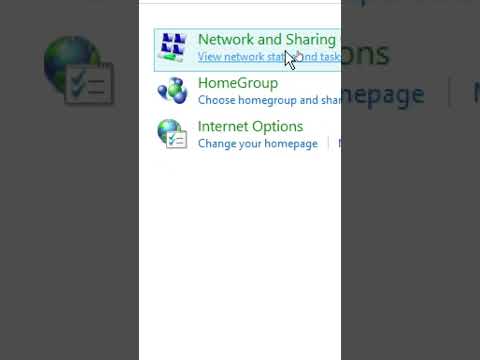
By arman munadi Cara melihat kode wifi di laptop by arman munadi

Title: Cara Memunculkan kembali Ikon Wifi di Wondows 10
Channel: NGILMUMINATI
Cara Memunculkan kembali Ikon Wifi di Wondows 10 by NGILMUMINATI
Change Wifi Settings
BC WiFi Nightmare? Conquer Your Windows Laptop's Connection NOW!
Navigating the digital landscape in British Columbia, especially with a Windows laptop, often feels like traversing a treacherous terrain of spotty WiFi connections. The frustrating experience of dropped signals, agonizingly slow loading times, and intermittent access to essential online services can quickly transform a productive workday or a relaxing evening of streaming into a test of patience. But fear not. We're here to equip you with the knowledge and, more importantly, the solutions to banish those BC WiFi nightmares and regain control of your precious online experience. Forget the endless restarts and the futile router resets. We'll get you connected, and keep you connected.
Identifying the Culprit: Pinpointing Your WiFi Woes
Before diving into solutions, it is essential to diagnose the root of your WiFi problems. Are you facing a systemic connectivity issue, or is the problem specific to your Windows laptop? The first step is to determine if the issue is local to your device or a broader problem with the network. Try these fundamental troubleshooting steps:
The Device Test: Connect other devices – smartphones, tablets, even smart TVs – to the same WiFi network. If these devices experience similarly poor performance, the issue likely lies within the network itself (router, internet service provider, or external factors). If other devices work flawlessly, the problem is probably within your Windows laptop.
The Physical Check: Is your laptop positioned in a location with optimal signal reception? Thick walls, metal objects, and other electronic devices can interfere with the WiFi signal. Try moving your laptop closer to the router or in a location with a clear line of sight.
The Restart Ritual: Yes, it’s a cliché, but a simple restart of both your laptop and the router can often resolve temporary glitches and software conflicts. Restart your devices in sequence – router first, then your laptop – allowing them to fully boot up and reconnect.
Unleashing the Power: Troubleshooting Your Windows Laptop's WiFi
Assuming the problem originates within your Windows laptop, we'll explore a range of solutions, moving from simpler fixes to more advanced troubleshooting techniques:
1. Driver Dilemma: Updating Your Wireless Network Adapter Drivers
Outdated or corrupted network adapter drivers are a common culprit. Your wireless adapter is essentially the translator between your laptop and the WiFi signal. If this "translator" is not working correctly, you’ll experience connectivity problems.
Step 1: Access Device Manager. Right-click on the Start button (the Windows icon) and select "Device Manager."
Step 2: Locate Your Network Adapter. In Device Manager, expand the "Network adapters" section. Your wireless adapter will likely be listed with a name like "Intel Wireless-AC 9260" or "Realtek RTL8821CE Wireless LAN 802.11ac PCI-E Network Adapter."
Step 3: Update the Driver. Right-click on your wireless adapter and select "Update driver." Choose "Search automatically for drivers." Windows will attempt to find and install the latest drivers.
Step 4: Alternative Update Method. If Windows can't find updated drivers, you can manually update the driver. Go to your laptop manufacturer's website (e.g., Dell, HP, Lenovo) and search for the drivers specific to your laptop model. Download and install the latest drivers for your wireless network adapter.
2. Forget and Reconnect: Resetting Your Network Configuration
Sometimes, your laptop might be clinging to outdated or corrupted network settings. Forget the existing network and reconnect to refresh the configuration.
Step 1: Access Network Settings. Click the WiFi icon in your system tray (usually in the bottom-right corner of your screen).
Step 2: Forget the Network. Click on the name of the WiFi network you are connected to, and then click "Forget."
Step 3: Reconnect. Click the WiFi icon again, select your network from the list, and enter the network password.
3. Power Management Paradox: Optimizing Wireless Adapter Power Settings
Windows can sometimes throttle the power to your wireless adapter to conserve battery life. However, this can sometimes result in connection instability. Adjust the power management settings.
Step 1: Access Device Manager. As before, right-click the Start button and select "Device Manager."
Step 2: Locate Your Network Adapter. Expand the "Network adapters" section and find your wireless adapter.
Step 3: Adjust Power Management. Right-click the wireless adapter and select "Properties." In the Properties window, go to the "Power Management" tab. Uncheck the option that says "Allow the computer to turn off this device to save power."
4. Network Troubleshooter: Windows' Built-in Diagnosis Tool
Windows includes a built-in network troubleshooter designed to automatically identify and fix common connection problems. It's a quick and easy method for resolving a variety of issues.
Step 1: Access Network Settings. Right-click on the WiFi icon in the system tray and select "Troubleshoot problems."
Step 2: Let Windows Work. Windows will diagnose your connection and attempt to fix any identified issues. Follow any on-screen prompts.
5. Advanced Tactics: Exploring Advanced Settings and Commands
If the above methods fail, more advanced troubleshooting techniques may be necessary. These involve working within the Command Prompt and Network Adapter Settings.
Step 1: Flush DNS Cache. Your DNS (Domain Name System) cache stores information about websites you've visited. Clearing this cache can sometimes resolve connection problems. Open Command Prompt as administrator (search for "cmd," right-click, and select "Run as administrator"). Type the following command and press Enter:
ipconfig /flushdns.Step 2: Reset TCP/IP Stack. The TCP/IP stack manages how your computer communicates over the internet. Resetting it can often resolve complex connection issues. In Command Prompt (as administrator), type the following commands, pressing Enter after each:
netsh winsock resetnetsh int ip reset
Step 3: Check IP Configuration. Incorrect IP configuration can also cause issues. In Command Prompt (as administrator), type
ipconfig /alland press Enter. Check the output for the following:- IP Address: Ensure your laptop has a valid IP address within the network's IP range.
- Default Gateway: Verify that the "Default Gateway" matches the router's IP address (usually 192.168.1.1 or 192.168.0.1).
- DNS Servers: Confirm the DNS servers are functioning correctly. You may try switching to Google’s public DNS servers (8.8.8.8 and 8.8.4.4) for faster and more reliable DNS resolution.
- Automatic or Static: Ensure that your IP address is set to be obtained automatically, or the static settings match your network requirements and range.
6. Channel Surfing: Changing Your Router's WiFi Channel
WiFi routers broadcast on different channels. If your router is using a crowded channel (i.e., the same channel as many of your neighbors), you will experience interference and performance issues.
Step 1: Access Your Router's Configuration. You'll need to access your router's settings. The method varies depending on your router model. Refer to your router's manual or search online for instructions specific to your router (e.g., "How to access my [router model] router settings"). The most common way involves typing your router’s IP address into a web browser (usually 192.168.1.1 or 192.168.0.1).
Step 2: Log In. You'll need to enter your router's username and password. These are usually found on a sticker on the router itself, or in the router's manual.
Step 3: Find the Wireless Settings. Look for a "Wireless" or "WiFi" section in your router's settings.
Step 4: Change the Channel. Within the wireless settings, you'll find an option to change the channel. Most routers automatically scan and select the best channel, but you can also manually select a channel. Try using channels 1, 6, or 11 as they are generally less prone to interference.
7. Hardware Hurdles: When to Consider Upgrading or Testing Your Wireless Adapter
If you have exhausted all software-based solutions and still experience persistent WiFi problems, the issue might stem from the hardware.
Adapter Performance: Older wireless adapters might not support the latest WiFi standards (e.g., Wi-Fi 6 or Wi-Fi 6E), or may simply be nearing the end of their lifespan. Consider upgrading to a newer, faster adapter.
Testing the Adapter: If you suspect a hardware fault, you can try these steps:
- External Adapter: Use an external USB WiFi adapter and test its connectivity. If the external adapter performs better, it confirms the primary adapter fault.
- Internal Replacement: If you're comfortable doing so, replace the internal wireless adapter. Research the correct replacement parts for your laptop model.
- Professional Inspection: If you are unsure about hardware replacements, consult
